Edit keyword values in the Config File Manager as required. Text strings are case-sensitive. You can manually change any cell value, or use one of the mass change options described below. Anytime a cell is edited (either manually or via the mass change options), the cell background color changes to green and the text is italicized. Final changes will not be committed to the configuration files, until all edits are reviewed and saved.
For more information, see the following subsections below:
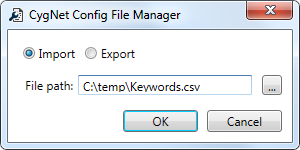
Keywords and values can be imported from or exported to a comma-separated value (CSV) file. You might want to create a standard configuration file definition that can be imported whenever you create a new CygNet site. Alternately, you can modify keyword values using Microsoft Excel and then import.
To Import from a CSV File
Note: The following notes and conditions apply when importing from a CSV file:
- Wildcards in column headers are allowed. For example, I have a column in my CSV titled "*.ACS". Those settings will be used for any service name that matches.
- If there is a column in the CSV that doesn't match any column in the manager, that column is ignored.
- If multiple columns in the CSV match a single column in the manager, the import is aborted, and an error messages is displayed.
- If there are keywords in the CSV that aren't in the manager, those keywords are ignored and not imported.
- A CSV import file may contain fewer keywords than are in the manager.
- Disabled keywords must be handled with a "#" preceding the value in the CSV file.
- N/A keywords must be listed as blank in the CSV file.
- If the import file contains a keyword value that should be N/A, the value is ignored.
To Export to a CSV File
Note: The Summary and Special Action columns do not export.
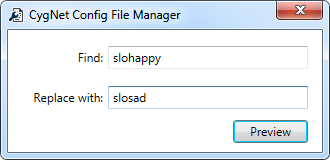
You can find all keyword values that match a search string, replace all with a new value, and preview a grid showing Keyword, Service, Old Value, and New Value.
The right-click context menu contains the following options for editing individual keyword values:
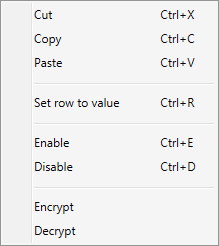
| Command | Description | Shortcut |
|---|---|---|
|
Cut |
Removes a keyword value and puts it on the clipboard. |
Ctrl+X |
|
Copy |
Copy a keyword value to the clipboard. |
Ctrl+C |
|
Paste |
Paste a keyword value from the clipboard. |
Ctrl+V |
|
Set row to value |
Select to set every cell in the row to the value in the selected cell, including the Enable/<Disabled> state. |
Ctrl+R |
|
Enable |
Select to Enable a <Disabled> keyword. You can highlight multiple cells and enable all at once. |
Ctrl+E |
|
Disable |
Select to Disable an Enabled keyword. You can highlight multiple cells and disable all at once. |
Ctrl+D |
|
Encrypt |
Select to encrypt an unencrypted keyword. See Encrypted Keywords for more information about encrypted keywords. |
|
|
Decrypt |
Select to decrypt a previously encrypted keyword. |

|
|
|

